 MidiAI Studio
Guide �� DAW integration
Bringing Converted MIDI Into Ableton Live
Ableton Live thinks in clips, and that shapes how converted MIDI fits into it. Where a linear DAW puts everything on a timeline, Live offers a session view of loopable clips alongside the arrangement, which makes it uniquely suited to turning a converted loop into an improvisation and then a finished track.
Understanding Live's particular worldview ? clips, warping, racks, and envelopes ? lets you place converted MIDI where it will be most useful. A transcription that becomes a session clip can be triggered, layered, and jammed with in ways that a timeline-first approach does not naturally encourage.
This guide covers using MidiAI Studio conversions in Live specifically, from importing clips to warping for sync to developing ideas across the session and arrangement views. It assumes familiarity with the general DAW workflow and focuses on what is distinct about Live.
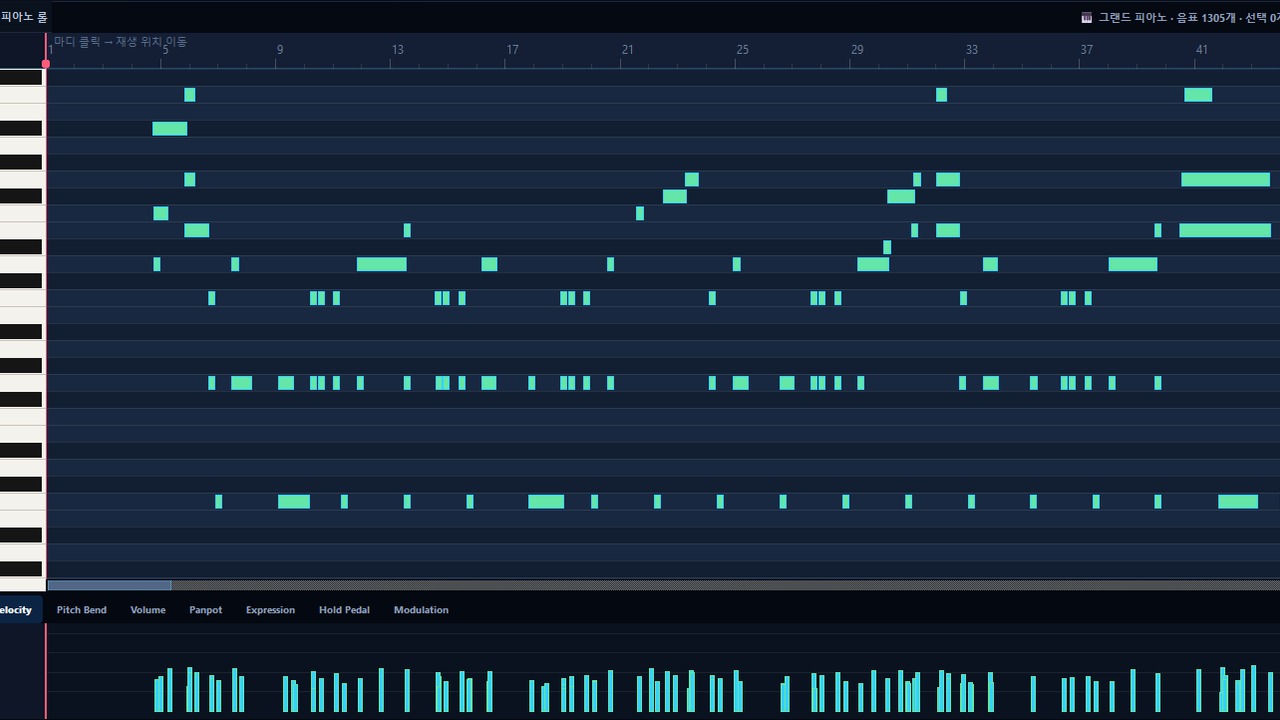
How Live's session and arrangement views frame MIDI
Using converted MIDI in Ableton Live means integrating transcribed note data into Live's clip-based environment, where MIDI lives in triggerable clips across the session and arrangement views. It leverages Live's strengths in looping, warping, and improvisation.
The defining Live characteristic is the session/arrangement duality: converted MIDI can be developed non-linearly as loopable clips before being committed to a linear arrangement, a workflow other DAWs do not center as strongly.
Importing converted MIDI as clips
In Live, converted MIDI becomes clips, which are the fundamental unit of the program, and this changes how you develop material. A transcribed loop dropped into a session slot can be triggered, duplicated, and varied freely, so MidiAI Studio output slots naturally into Live's exploratory, loop-based way of building tracks before anything is fixed to a timeline.
Tempo and warping deserve care because Live is built around flexible tempo. Setting the project tempo to match the conversion keeps MIDI clips aligned, and while warping primarily affects audio, understanding Live's tempo model prevents converted MIDI from drifting out of sync when you change the global tempo or follow a tempo map.
Instruments and racks give converted parts their sound, and Live's rack system is a particular strength. You can layer multiple instruments in a rack behind a single converted MIDI clip, and clip envelopes let you automate expression and parameters per clip, so a transcribed line can evolve dynamically each time it plays rather than repeating identically.
Warping, tempo, and keeping MIDI in sync
From a converted bass loop to a session jam in Live
Suppose you converted a four-bar bass loop in A minor at 124 BPM and want to build a track around it in Live. You drop the MIDI into a session clip and set the project to 124 BPM so everything aligns.
You assign a synth bass through an instrument rack, then duplicate the clip into variations ? one with a filter envelope automated via clip envelopes, one transposed up for a bridge. In session view you jam, triggering clips in different combinations alongside drums and a pad until an arrangement emerges.
Once the structure feels right, you record the session performance into the arrangement view and refine it on the timeline. The converted bass loop became the seed of a full track through Live's clip-and-jam workflow, which MidiAI Studio's clean loop made easy to explore.
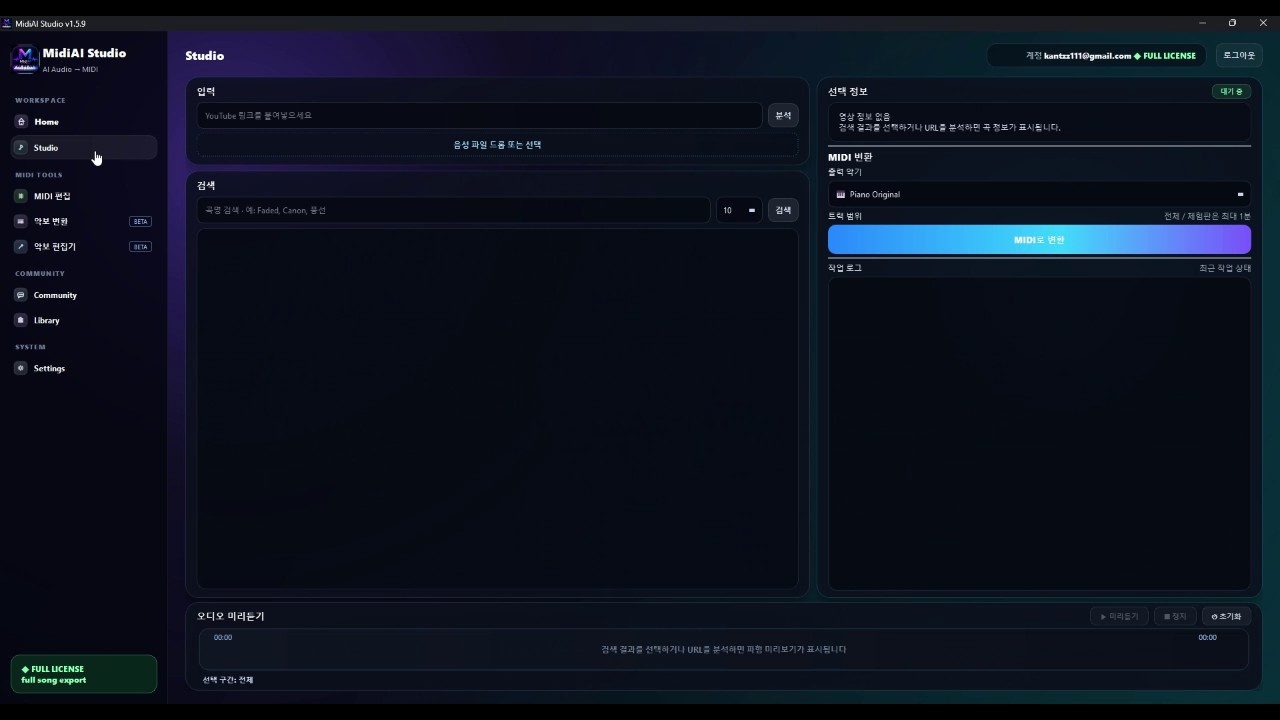
Assigning instruments and racks to parts
- Set the project tempo before importing. Match Live's tempo to the conversion so MIDI clips align to the grid. Live's flexible tempo makes this step especially important for keeping converted material in sync.
- Import converted MIDI as session clips. Place transcribed loops into session view slots so they are triggerable and loopable. This unlocks Live's exploratory, clip-based development approach.
- Build instruments with racks. Assign instruments through racks so you can layer sounds behind a single converted clip. Racks are a Live strength that adds depth to transcribed parts.
- Automate with clip envelopes. Use clip envelopes to vary expression and parameters per clip. This lets a converted line evolve dynamically instead of repeating identically each loop.
- Commit from session to arrangement. Once an idea works in session view, record it into the arrangement and refine on the timeline. This is how Live moves from jam to finished track.
Clip envelopes for expression and automation
- Always align Live's tempo to the conversion before importing.
- Develop converted loops as session clips to exploit Live's strengths.
- Layer sounds in racks behind single converted clips.
- Use clip envelopes to keep repeating parts evolving.
- Jam in session view before committing to the arrangement.
Turning a converted loop into a session jam
- Ignoring Live's tempo model: Leaving tempo mismatched drifts converted MIDI out of sync when the global tempo changes.
- Forcing a timeline-first approach: Skipping session view forfeits Live's clip-based exploration that suits converted loops.
- Using bare instruments over racks: Passing up racks misses Live's easy layering behind a single converted clip.
- Leaving clips static: Without clip envelopes, repeated converted parts sound identical and lifeless.
- Never committing to arrangement: Endless session jamming without recording to the timeline leaves no finished track.
Consolidating and arranging from session to timeline
Live's clip-centric design is genuinely well matched to converted material, and understanding why deepens how you use it. A transcription is often a self-contained loop or phrase, which is exactly the unit Live is built to manipulate, so converted MIDI feels at home in session view in a way it does not in a purely linear DAW. The tool's philosophy and the material's nature align.
The session/arrangement duality encourages a mode of working that suits exploration. Because you can audition combinations of converted clips freely before committing, you discover arrangements rather than planning them, which can lead somewhere more interesting than a linear approach would. A MidiAI Studio loop becomes a seed for improvisation, not just a fixed part to place.
Live-specific pitfalls with converted material
Racks and clip envelopes are Live's answer to keeping repetition alive, and they matter especially for converted loops. A transcription that repeats identically grows stale, but the same loop varied by envelopes and enriched by a rack of layered instruments stays engaging across a track. Live gives you the means to make a static conversion dynamic.
The discipline Live most demands is the willingness to commit. Its exploratory strengths can become a trap of endless jamming, so the workflow's final move ? recording session ideas into the arrangement ? is what turns exploration into a finished piece. Used with that discipline, Live turns a converted loop into a track through a process that is as much play as production.
FAQ
Straight answers for musicians researching Ableton Live converted MIDI. Expand any question?answers stay on this page so you do not bounce away mid-read.
How does converted MIDI fit into Ableton Live's session view?
It becomes triggerable, loopable clips you can duplicate, vary, and jam with. Live's clip-based session view suits converted loops especially well, letting you explore arrangements non-linearly before committing to a timeline.
Do I need to warp converted MIDI in Live?
Warping primarily affects audio, but you must set the project tempo to match the conversion so MIDI clips stay aligned. Understanding Live's tempo model prevents converted MIDI from drifting when you change the global tempo.
How can I make a repeating converted clip sound less static in Live?
Use clip envelopes to automate expression and parameters per clip, so the part evolves each time it plays. Layering instruments in a rack behind the clip also adds variation and depth.
What is the advantage of Live for developing converted loops?
Its session/arrangement duality lets you develop converted MIDI non-linearly as loopable clips, jamming with combinations before recording to a timeline. This exploratory workflow is where Live excels over timeline-first DAWs.
How do I turn a Live session jam of converted clips into a finished track?
Once an idea works in session view, record the performance into the arrangement view and refine it on the timeline. This commits your non-linear exploration into a linear, finished structure.